Meta Lead Ads to CRM Without Zapier: Get Instant Form Leads in Minutes
How to pull Facebook and Instagram Instant Form leads straight into a CRM: permissions, webhooks vs polling, Meta's 90-day limit and how to contact leads fast.
On this page
- How do Instant Form leads get into a CRM?
- Which permissions do you need?
- How far back can you fetch leads?
- What lands in the CRM?
- How do you cut the time to first contact?
- How do you check the integration works?
- How do stages get back to Meta?
- What about personal data?
- When is this the wrong setup?
- Next step
An Instant Form captures someone's details in seconds, and then the lead often just sits there. Someone exports a file from Ads Manager once a day, someone else pastes it into a spreadsheet, and by then the prospect has forgotten where they left their number. This guide shows how to get Meta lead ads straight into a CRM without middlemen: which permissions you need, how webhooks differ from polling, and how to make first contact happen in minutes rather than days.
How do Instant Form leads get into a CRM?
Meta exposes leads through the Graph API in two ways, described in its guide to retrieving leads:
| Method | How it works | Pros | Cons |
|---|---|---|---|
Page webhook (leadgen field) | Meta notifies your server about a new lead, and the server fetches its data | Fastest | Needs a public HTTPS address; Meta warns of delays of up to a few minutes |
| Polling (bulk read) | Your server regularly asks for new leads on each form | Works without a public address | Delay equals the polling interval |
Tools like Zapier or Make do the same thing as an extra hop between Meta and your CRM. That's another account with access to personal data and another place where things can stall. If the CRM fetches leads itself, you don't need the hop.
How does Convs handle it?
Convs does both: it polls each connected form every 5 minutes and accepts an optional Page webhook. A lead delivered both ways is saved once. Failed fetches are retried, and polling stays as a fallback if a notification never arrives. The Fetch leads button triggers a pull straight away.
Which permissions do you need?
According to Meta's documentation, full lead and ad-level data requires:
leads_retrieval, without which leads can't be read at allpages_show_list,pages_read_engagement,pages_manage_adsads_managementpages_manage_metadataas well, for webhooks
The person connecting the account also needs the right tasks on the Page and lead access. Meta notes that unless your business portfolio settings were changed, only Page admins can download leads, and everyone else needs access granted in Leads Access Manager. Rolling this out for many businesses may require Meta's App Review and business verification.
In Convs you never paste Page tokens. A single button opens Meta's login for Pages and leads, and before a form is saved the app checks that it can actually read leads from it.
How far back can you fetch leads?
Meta lets you download lead data for 90 days after the form is submitted. It won't release anything older, by export or by API. So:
- the first sync of a newly connected form pulls the last 90 days of leads
- an on-demand import lets you choose 7, 30 or 90 days; leads already in the CRM are skipped
- imports run as background jobs with a "Leads fetched: N" counter, and if Meta's rate limit kicks in, the job resumes where it stopped
If a campaign has been running for six months and the leads only live in Ads Manager, anything older than 90 days is already gone. Connect the integration before the campaign starts.
What lands in the CRM?
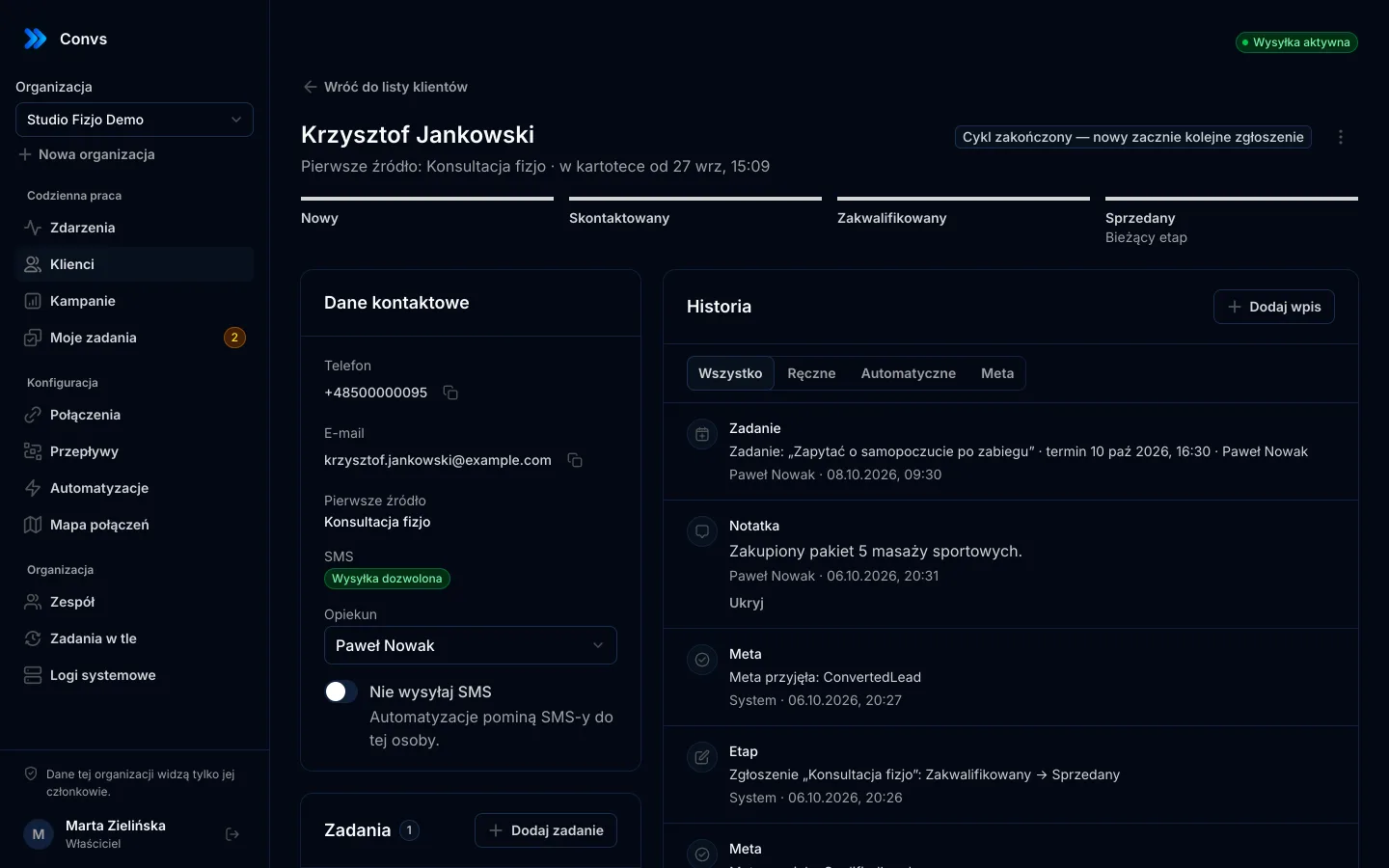
Each submission becomes an entry on a person's record in the CRM:
- Contact details from the standard fields, name, email and phone, stored encrypted.
- Every other answer on the form, up to 50 per submission, labelled with the question text read from Meta. Owners, admins and operators can see them; viewers can't.
- Source: campaign, ad set, ad, platform (Facebook or Instagram) and whether the lead was organic.
- A stage, starting at New, plus a history of submissions, stage changes, texts, Meta deliveries and notes.
How are duplicate people avoided?
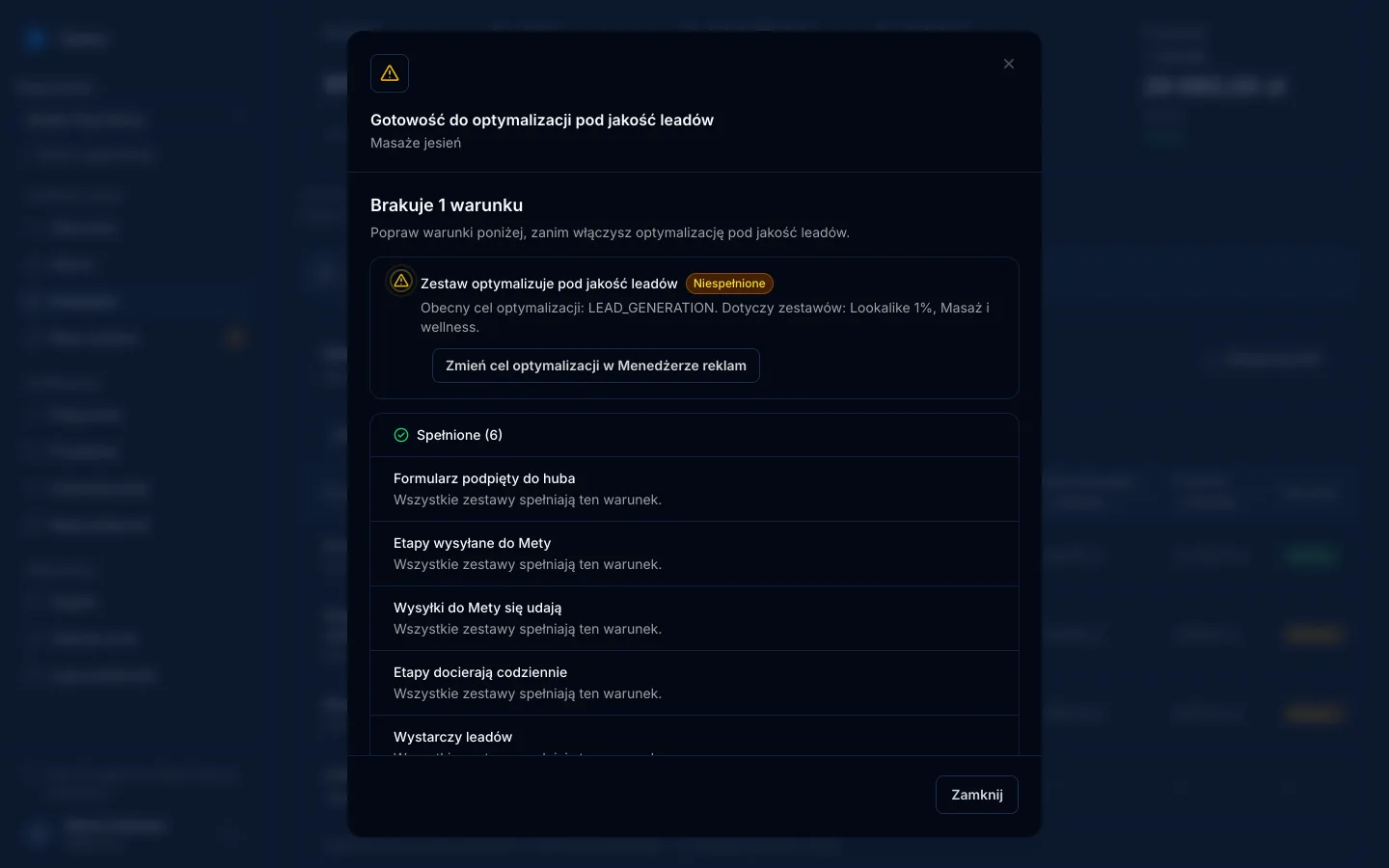
A person is a phone number or email address within your organisation. The phone number is matched first, then the email. A new submission only fills in empty fields, and manual corrections are never overwritten. If the phone points to one person and the email to another, the submission goes to the phone match and both records get a "possible duplicate" note. Merging is manual and deliberate.
How do you cut the time to first contact?
A lead that reaches your CRM in five minutes doesn't help if the rep looks at it tomorrow. Fast follow-up is a process, not just an integration; Meta has its own guide to responding to leads.
Three things Convs can do automatically:
- Round-robin owner. With assignment turned on, every new person gets the next team member, so no lead is left without an owner.
- A text to every new lead. An automation sends an SMS through your own SMSAPI, Twilio or HTTP gateway account, only between 8:00 and 20:00 in your organisation's time zone, skipping anyone who opted out. See speed-to-lead SMS automation.
- A task with a due time. An automation can create a "Call" task for the owner. If it goes overdue, another automation can react, for instance by alerting a manager.
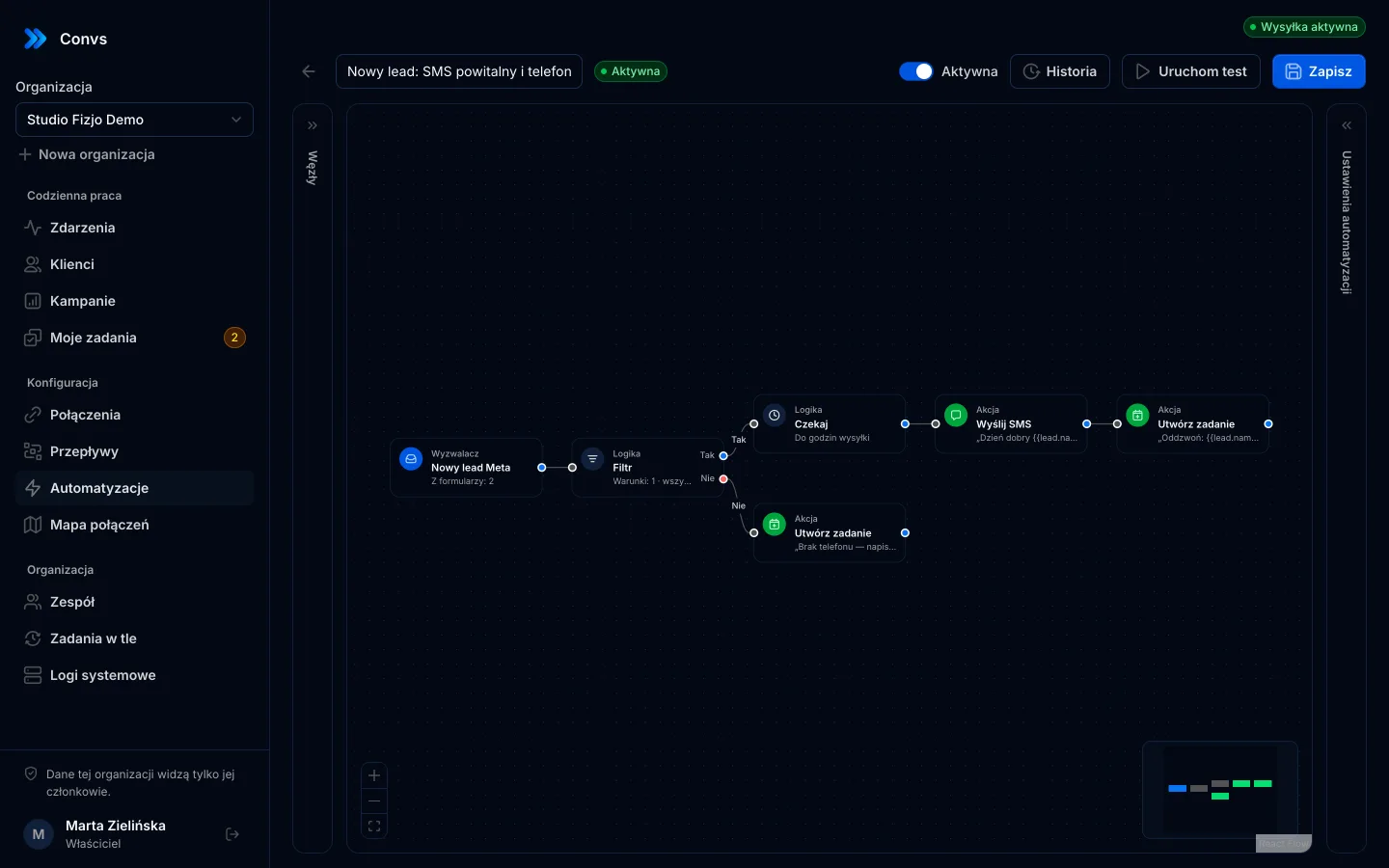
Automations only start for leads from the last 24 hours that arrived after the automation was switched on, so a 90-day backfill won't text people who left their number two months ago. Automations and round-robin assignment are on every plan, including Free (pricing).
How do you check the integration works?
Test it on yourself before you rely on it. Meta has a lead ads testing tool that creates a test lead on a chosen form without running an ad. Each form can hold one test lead at a time; delete it before creating another.
- Create a test lead in Meta's tool, entering your own phone number in the form preview.
- Click Fetch leads on the form, or wait up to 5 minutes for polling.
- Check that a person with your phone number appears in the CRM list, with the form answers on their record. Meta's test leads are organic, so there won't be a campaign.
- If an automation is on, look at its run history to see whether the text went out or is waiting for sending hours.
- Delete the test lead, create another with the same number, and check that the submission was added to the same person.
If the lead doesn't show up, the most common cause is missing lead access for the Page in Leads Access Manager. The Check configuration button on the form reads Page, form and lead access without sending anything to Meta.
How do stages get back to Meta?
Once a lead is in the CRM, changing its stage ("Qualified", "Won") can be sent back to Meta through the Conversions API with the lead ID. That's the foundation of conversion leads optimisation; choosing the stages is covered in CRM lead stages for Meta. You can also connect a form without sending anything to Meta, for example just to collect leads and trigger texts.
What about personal data?
Filling in a form is not blanket consent to any further processing. Connecting a form requires an admin to confirm the lawful basis. Contact details stored on the submission itself are deleted after 30 days, while the person's record lives in the CRM for as long as your retention setting allows (6–120 months, 24 by default). More in GDPR and the Conversions API (not legal advice).
When is this the wrong setup?
- Your whole team already works in another CRM and only wants leads there. Convs can forward each lead with an outbound webhook, but if your CRM has a native Meta connection, that may be enough.
- You collect leads through Messenger or a website form. This guide covers Meta's Instant Forms.
- You need a full sales CRM with quotes, email campaigns and forecasting. The CRM in Convs focuses on leads, stages, tasks and sending outcomes back to Meta.
- You can't get Page permissions. Without
leads_retrievaland lead access in Leads Access Manager, no integration can fetch leads. - Your team needs an English interface. The panel is currently available in Polish only.
Next step
Connect your Meta account, choose one form and pull the last 90 days of leads. Then set up an automation that texts every new lead during working hours.
Frequently asked questions
How long does Meta keep lead ads data?
According to Meta's Business Help Centre, lead data can be downloaded for 90 days after the form is submitted. Meta doesn't make older leads available, either by export or through the API, so leads need to be pulled continuously.
Do I need a webhook for leads to arrive quickly?
Not necessarily. Polling every 5 minutes works without a public server address. A webhook shortens the wait to whenever Meta sends its notification, though Meta notes these notifications can be delayed by up to a few minutes.
Which permissions do I need to retrieve leads?
According to Meta's documentation: leads_retrieval, pages_show_list, pages_read_engagement, pages_manage_ads and ads_management, plus pages_manage_metadata for webhooks. The person connecting the account also needs lead access for the Page in Leads Access Manager.
What happens when the same person submits a form twice?
The submission is added to the same person in the CRM. The phone number is matched first, then the email. If the phone belongs to one person and the email to another, both records get a possible-duplicate note, but nothing is merged automatically.
Will importing old leads send them automated texts?
No. Automations triggered by a new lead only start for leads created within the last 24 hours and after the automation was switched on. A 90-day backfill doesn't message anyone.